> For the complete documentation index, see [llms.txt](https://docs.signcod.com/llms.txt). Markdown versions of documentation pages are available by appending `.md` to page URLs; this page is available as [Markdown](https://docs.signcod.com/sign/english/basics/prepare-your-pc/pc-requirements.md).
# PC Requirements
Prepare your PC step by step and review the required Windows Security settings.
**SIGN · BASIC / 01**
Start here to review the system settings required by our software. Follow the walkthrough and steps in order. If you run into an issue, contact the Sign team at the bottom of this page.
## Watch the setup walkthrough
A video walkthrough of the initial system setup, **in Arabic**. The written steps are available below the video.
{% embed url="" fullWidth="false" %}
## Choose your Windows version
{% hint style="info" %}
The images are annotated illustrations adapted from the reference screens. Dark colors and red marks are used consistently for clarity; your system theme and available options may look different. Some Windows Security screens are shared between both versions.
{% endhint %}
{% tabs %}
{% tab title="Windows 11" %}
Follow the steps for **Windows 11** below.
{% stepper %}
{% step %}
### Open Windows Security
Search for **Windows Security** in the Start menu and open it.
Windows Security · Virus & threat protection
{% endstep %}
{% step %}
### Open Virus & Threat Protection
Select **Virus & threat protection**. Under its settings section, select **Manage settings**.
Select Manage settings
{% endstep %}
{% step %}
### Review the protection switches
Turn off **Real-time protection** and the other protection options shown in this section. The red marks identify the switches in the example.
Protection switches · example Off state
{% endstep %}
{% step %}
### Download Defender Control
* Download **Defender Control** using the button below.
* Archive password: `sordum` — all lowercase.
Download Defender Control
* Select **Disable Windows Defender**. You can re-enable it later if needed.
{% endstep %}
{% step %}
### Check Windows Defender status
* The status indicator turns **red** after disabling, as shown below.
Defender Control · command and red result indicator
{% endstep %}
{% step %}
### Disable the firewalls
Open **Firewall & network protection**. Review **Domain**, **Private**, and **Public network** individually and turn off the firewall for each profile, as described in this guide.
Open each of the three network profiles
{% endstep %}
{% step %}
### Smart App Control · Windows 11
Open **App & browser control → Smart App Control settings** and select **Off**. If the feature is not available on your installation, continue to the next step.
Windows 11 · open Smart App Control settings
Windows 11 · Smart App Control Off
{% endstep %}
{% step %}
### Reputation-based Protection
Open **Reputation-based protection settings** and turn off the options shown in that section. Available options can vary by Windows build.
Windows 11 · reputation-related switches
{% endstep %}
{% step %}
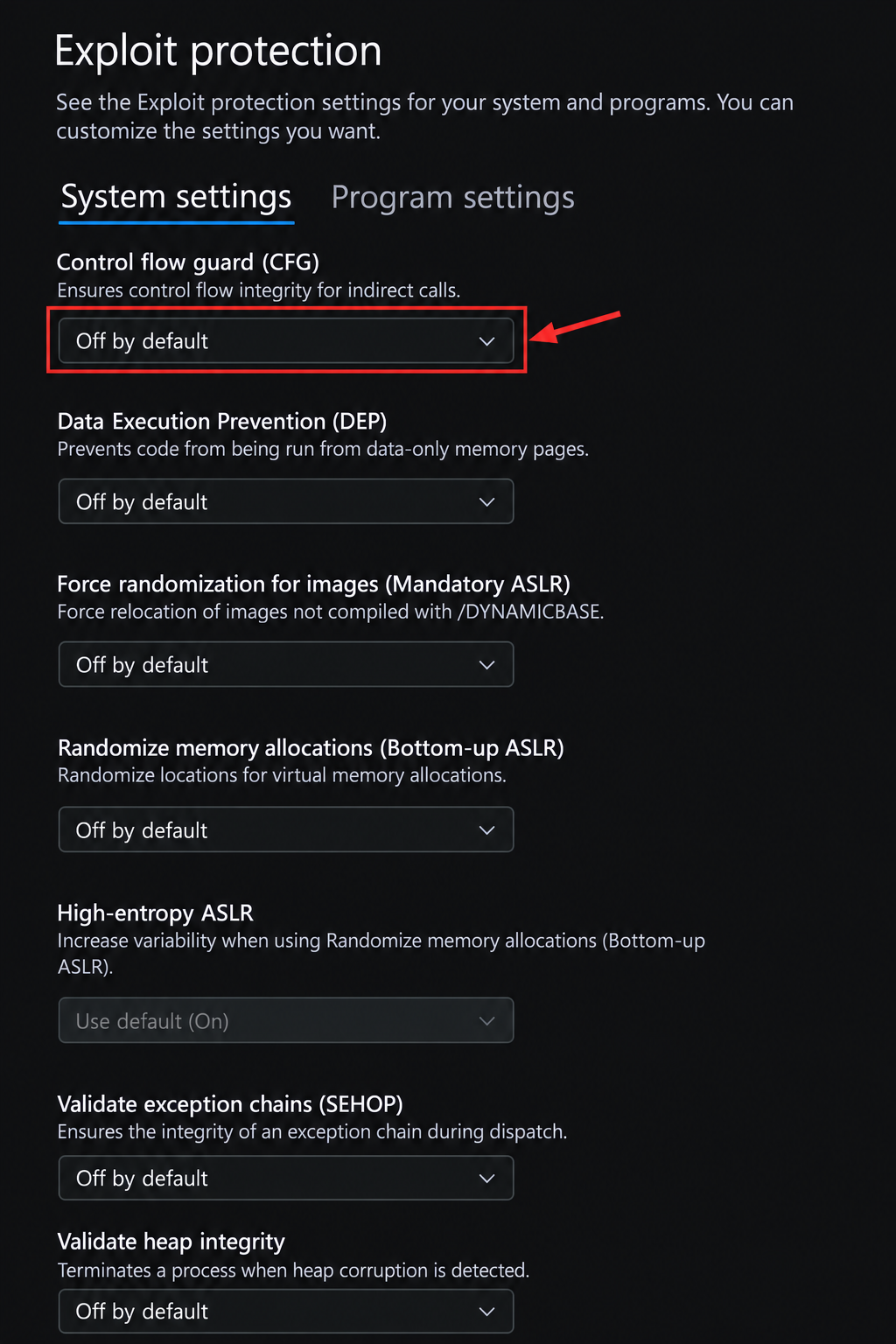
### Review Exploit Protection
Open **Exploit protection settings → System settings**. Review the dropdowns shown in the guide. If a control cannot be changed, leave it and continue.
Exploit protection · System settings dropdown
{% endstep %}
{% step %}
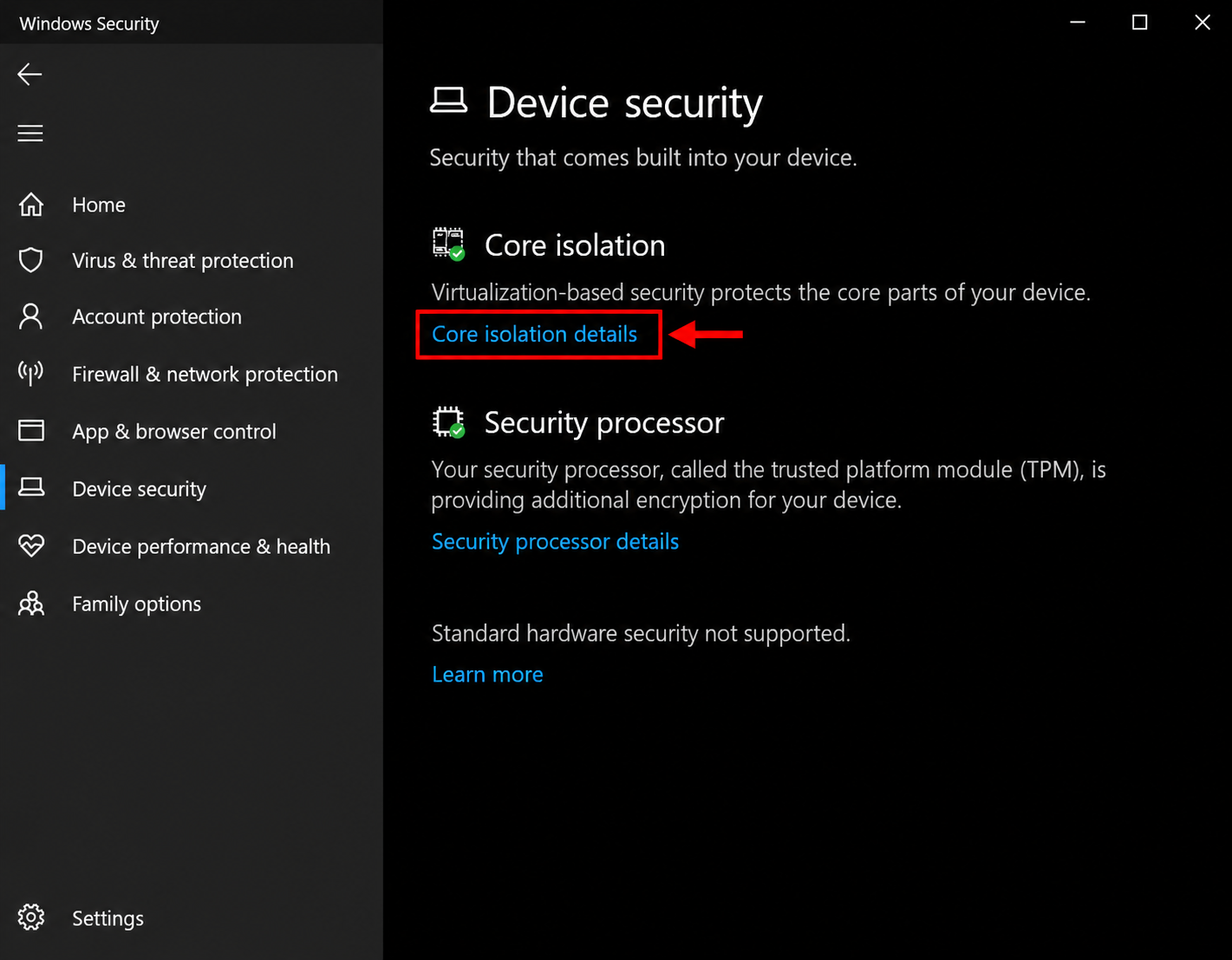
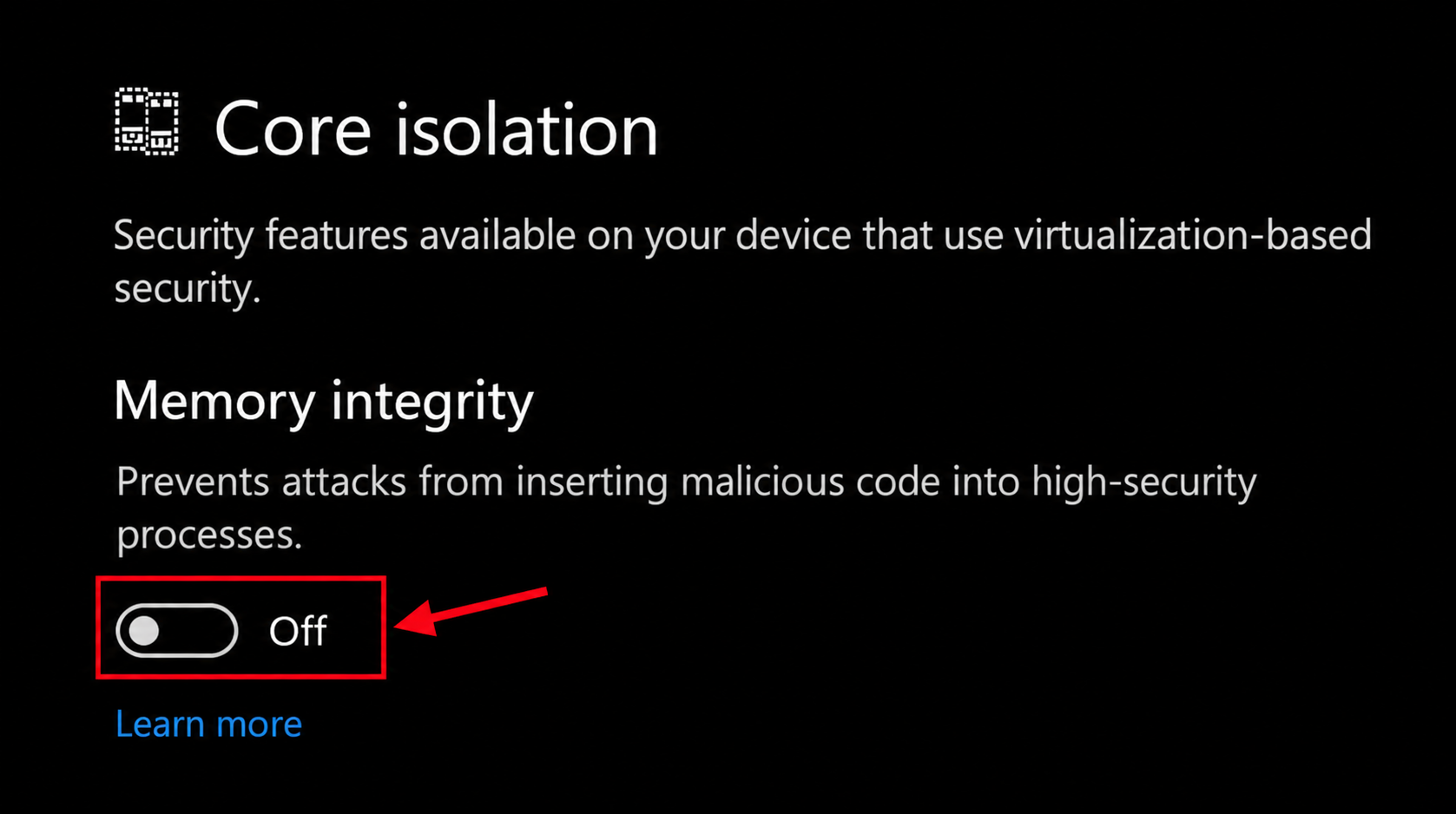
### Review every Core Isolation option
Open **Device security → Core isolation details**. Turn off **Memory integrity** and review the other options available on your device. Additional controls depend on the Windows version and hardware.
Open Core isolation details
Memory integrity · Off switch
{% endstep %}
{% step %}
### Disable startup apps
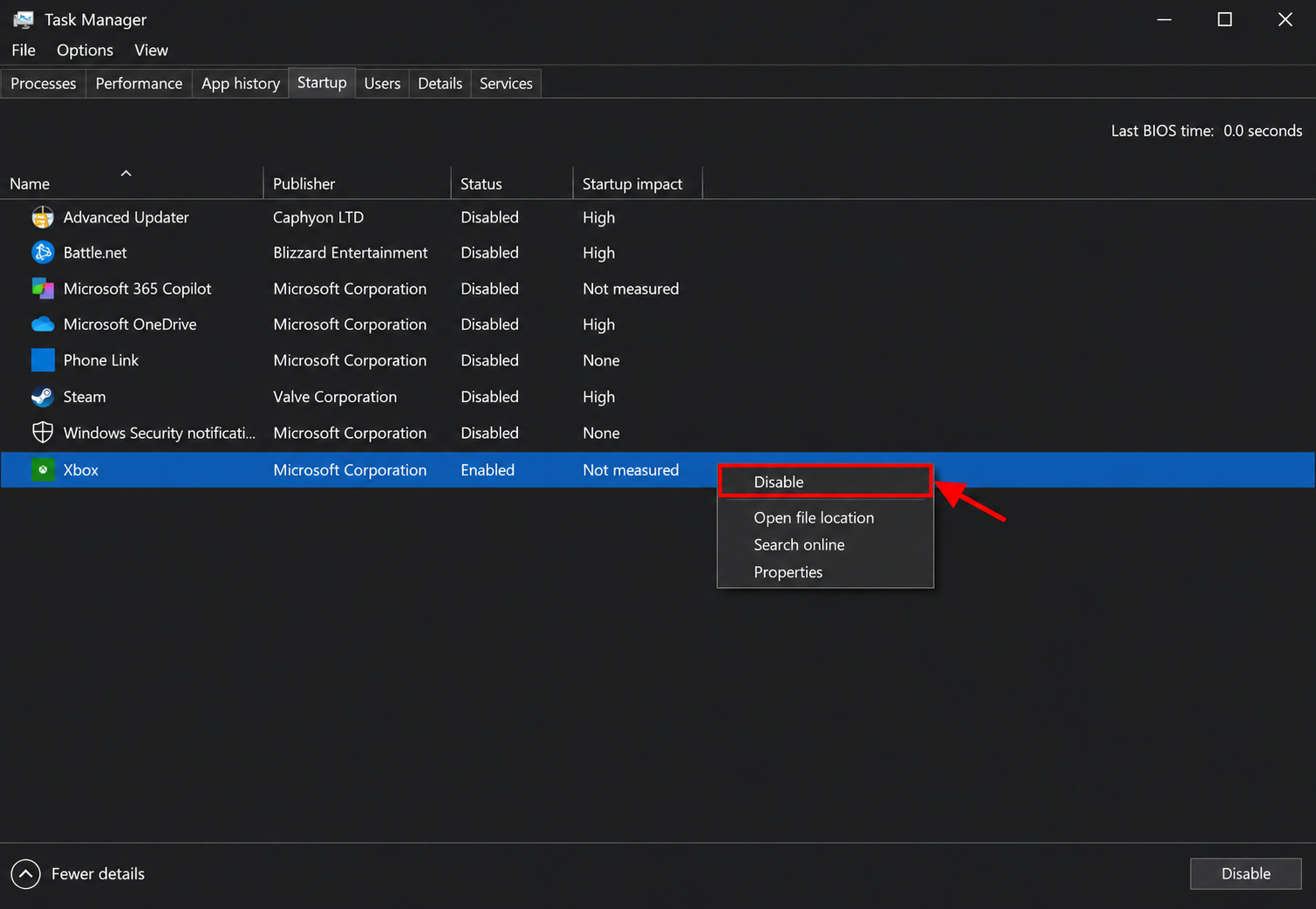
Open Task Manager with `Ctrl + Shift + Esc`. Select **Startup apps**, right-click an app, and select **Disable**. Repeat for the startup apps you are adjusting in this guide.
Windows 11 · startup app Disable command
{% endstep %}
{% step %}
### Run Support Tool
Open the Support Tool guide, run the tool as administrator, and wait until its work is complete.
Open Support Tool guide
{% endstep %}
{% step %}
### Restart and test
Restart your PC, then try the product again. If the issue continues, send support the step you reached and a screenshot.
{% endstep %}
{% endstepper %}
{% endtab %}
{% tab title="Windows 10" %}
Follow the steps for **Windows 10** below.
{% stepper %}
{% step %}
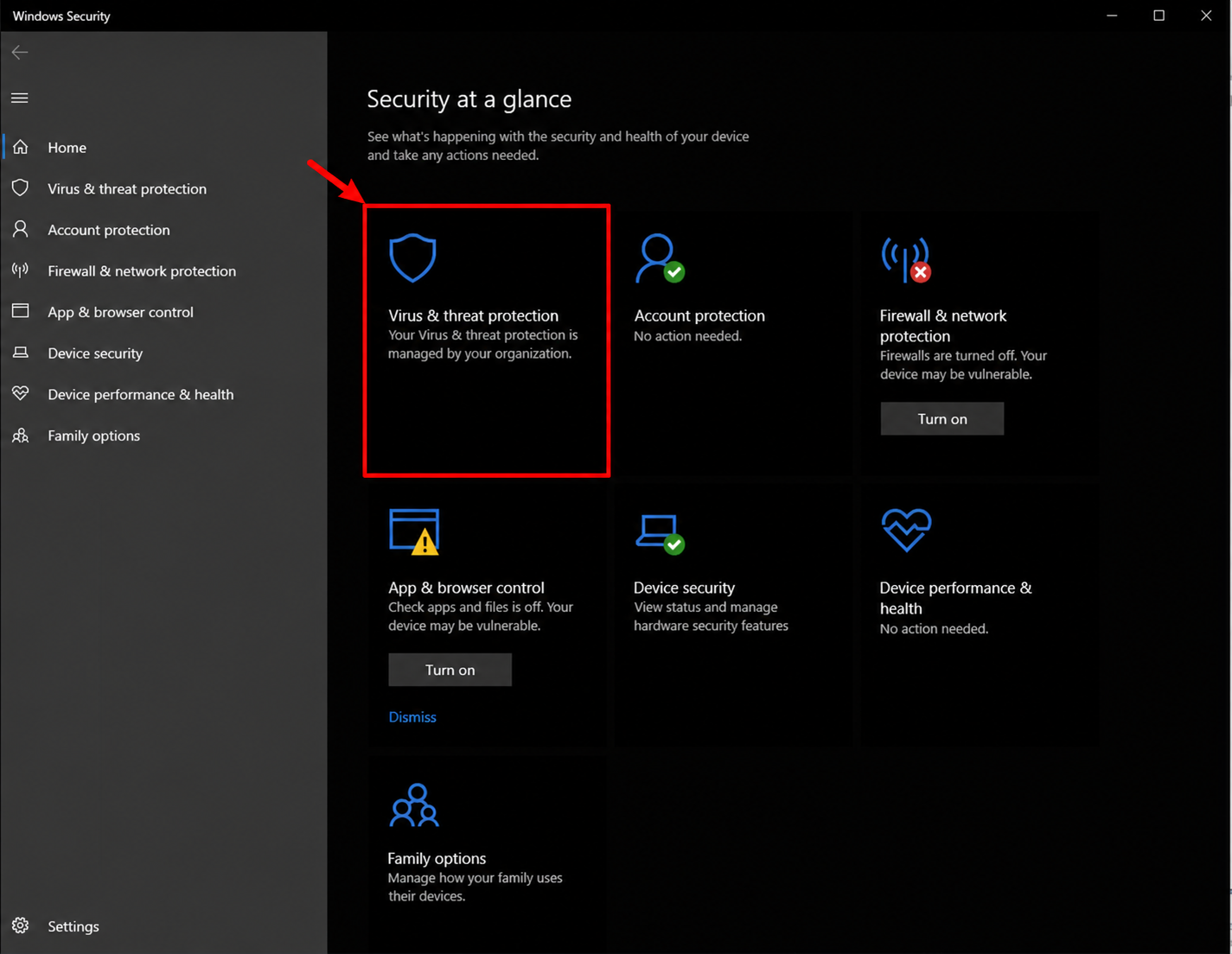
### Open Windows Security
Search for **Windows Security** in the Start menu and open it.
Windows Security · Virus & threat protection
{% endstep %}
{% step %}
### Open Virus & Threat Protection
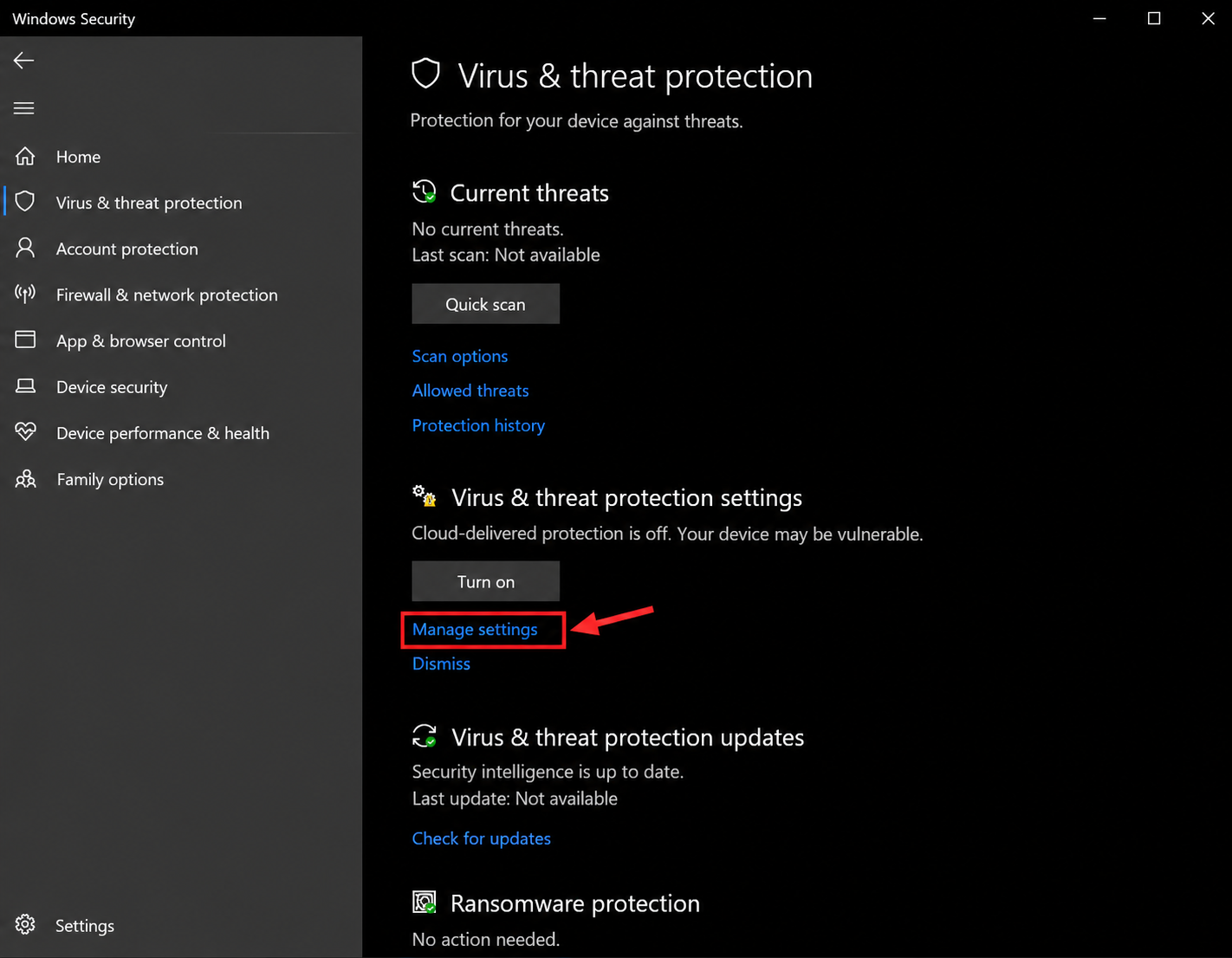
Select **Virus & threat protection**. Under its settings section, select **Manage settings**.
Select Manage settings
{% endstep %}
{% step %}
### Review the protection switches
Turn off **Real-time protection** and the other protection options shown in this section. The red marks identify the switches in the example.
Protection switches · example Off state
{% endstep %}
{% step %}
### Download Defender Control
* Download **Defender Control** using the button below.
* Archive password: `sordum` — all lowercase.
Download Defender Control
* Select **Disable Windows Defender**. You can re-enable it later if needed.
{% endstep %}
{% step %}
### Check Windows Defender status
* The status indicator turns **red** after disabling, as shown below.
Defender Control · command and red result indicator
{% endstep %}
{% step %}
### Disable the firewalls
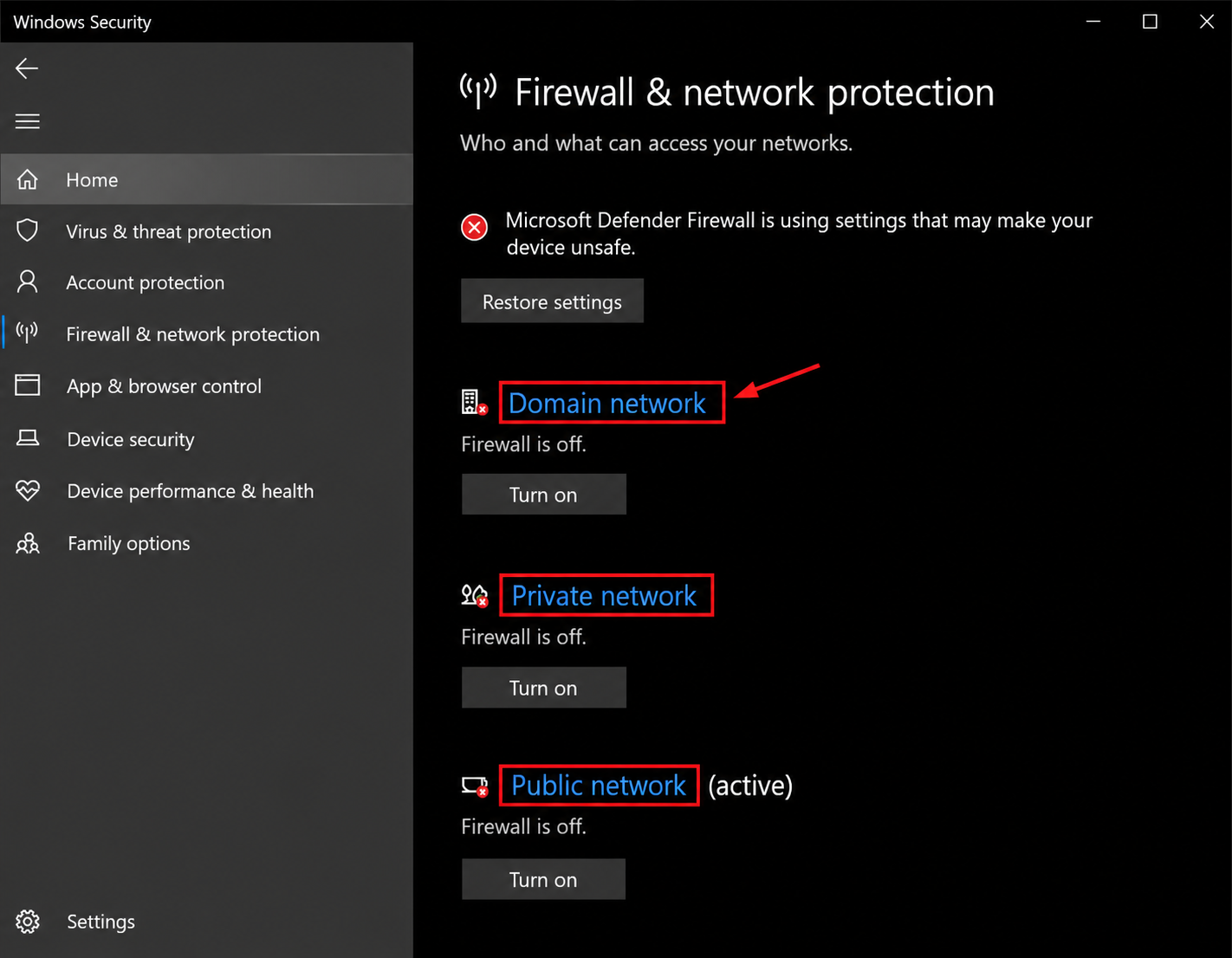
Open **Firewall & network protection**. Review **Domain**, **Private**, and **Public network** individually and turn off the firewall for each profile, as described in this guide.
Open each of the three network profiles
{% endstep %}
{% step %}
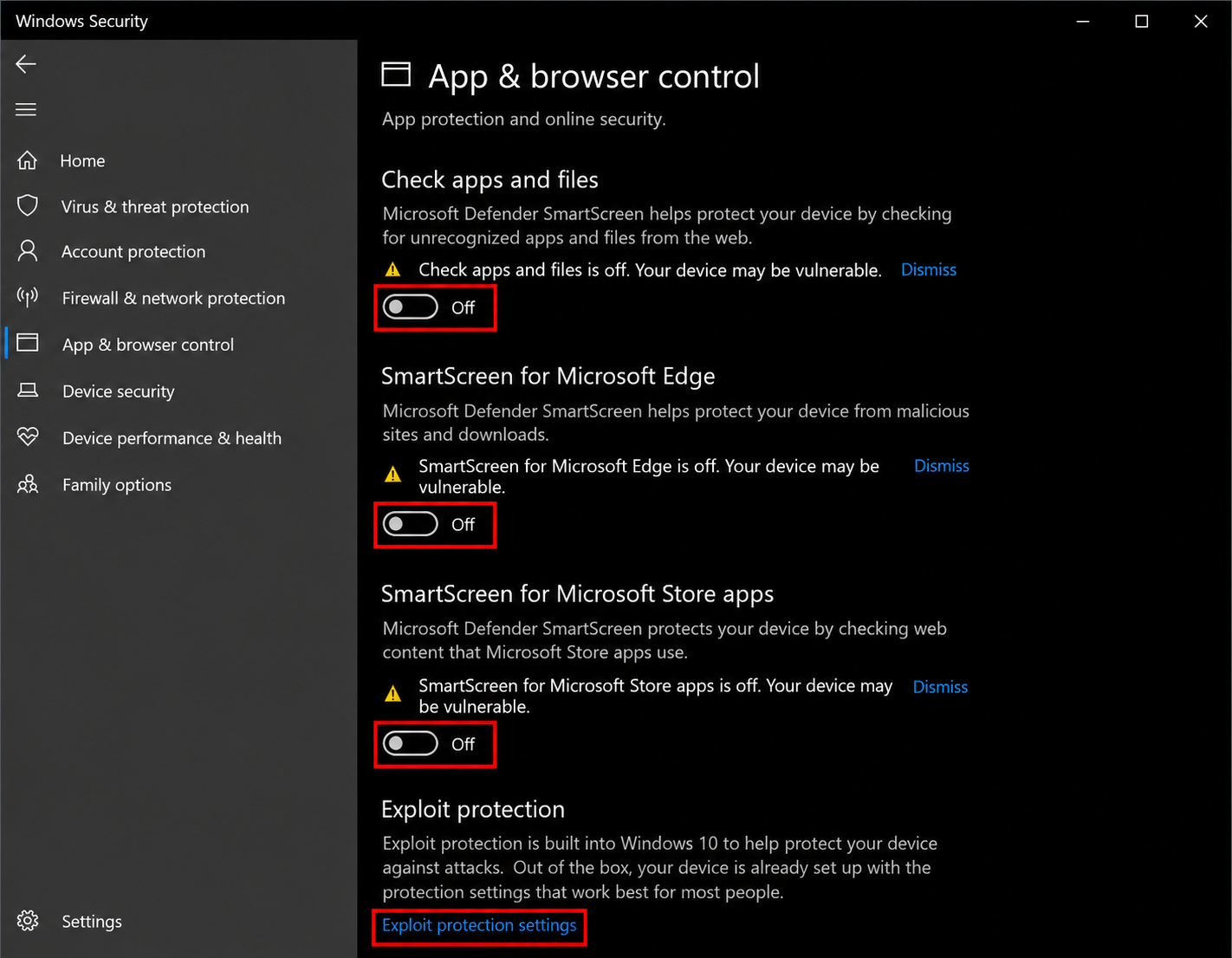
### App & Browser Control · Windows 10
Open **App & browser control** and review its displayed SmartScreen options. **Smart App Control is not available on Windows 10**, so there is no Smart App Control step to perform here.
Windows 10 · App & browser control
{% endstep %}
{% step %}
### Reputation-based Protection
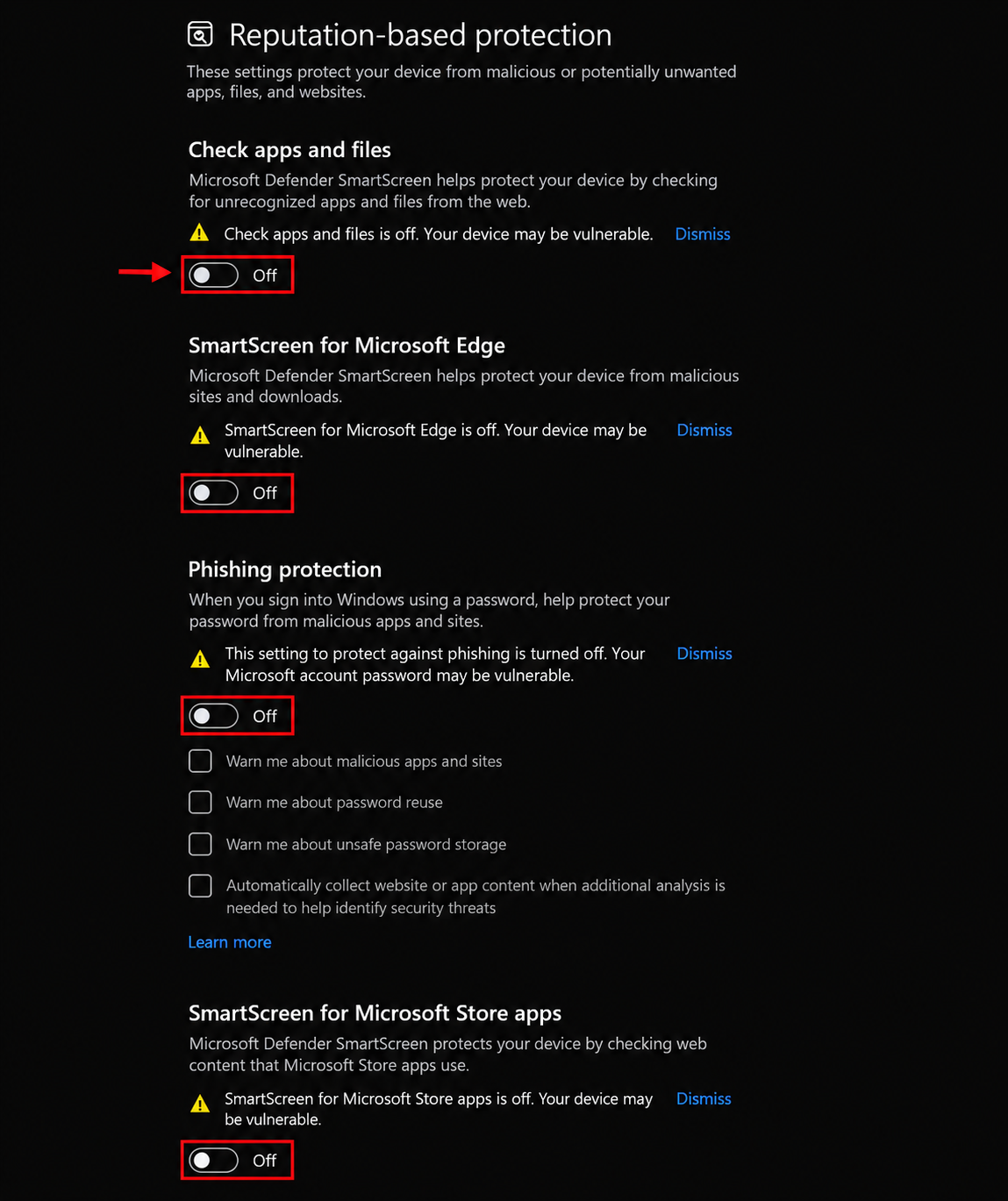
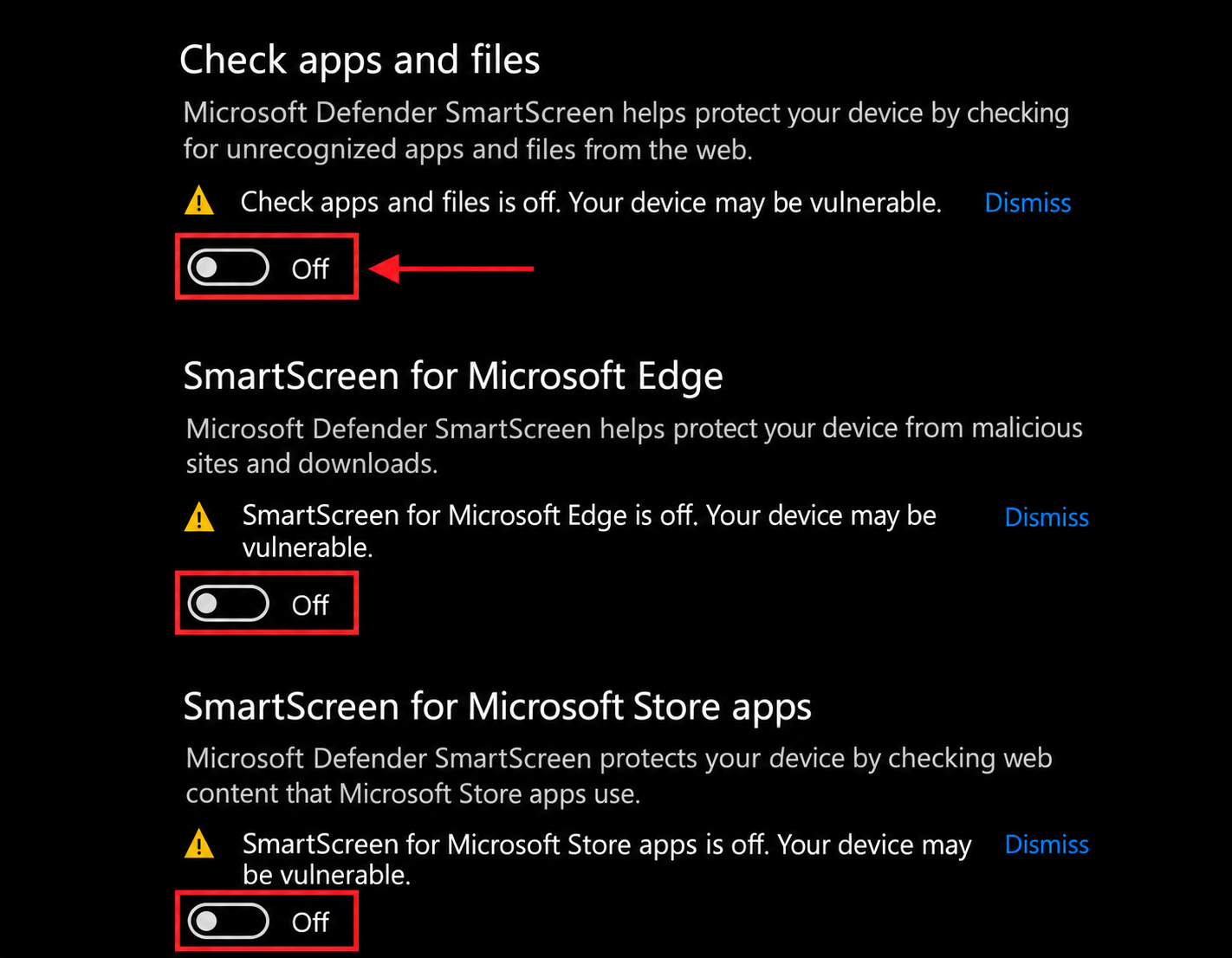
Review **Check apps and files**, **SmartScreen for Microsoft Edge**, and the other displayed options. On some Windows 10 builds these appear directly under App & browser control; on others open **Reputation-based protection settings** first.
Windows 10 · reputation-related switches
{% endstep %}
{% step %}
### Review Exploit Protection
Open **Exploit protection settings → System settings**. Review the dropdowns shown in the guide. If a control cannot be changed, leave it and continue.
Exploit protection · System settings dropdown
{% endstep %}
{% step %}
### Review every Core Isolation option
Open **Device security → Core isolation details**. Turn off **Memory integrity** and review the other options available on your device. Additional controls depend on the Windows version and hardware.
Open Core isolation details
Memory integrity · Off switch
{% endstep %}
{% step %}
### Disable startup apps
Open Task Manager with `Ctrl + Shift + Esc`. Select **Startup**, right-click an app, and select **Disable**. Repeat for the startup apps you are adjusting in this guide.
Windows 10 · startup app Disable command
{% endstep %}
{% step %}
### Run Support Tool
Open the Support Tool guide, run the tool as administrator, and wait until its work is complete.
Open Support Tool guide
{% endstep %}
{% step %}
### Restart and test
Restart your PC, then try the product again. If the issue continues, send support the step you reached and a screenshot.
{% endstep %}
{% endstepper %}
{% endtab %}
{% endtabs %}
## Need a hand?
**SIGN SUPPORT**
The Sign team is here to help. Open a Discord ticket and include the page name, the step you reached, and a screenshot of the issue so we can help you more clearly.
Get help on DiscordVisit Sign Website
---
# Agent Instructions
This documentation is published with GitBook. GitBook is the documentation platform designed so that both humans and AI agents can read, navigate, and reason over technical content effectively. Learn more at gitbook.com.
## Querying This Documentation
If you need additional information that is not directly available in this page, you can query the documentation by asking a question.
Perform an HTTP GET request on the following URL with the `ask` and `goal` query parameters:
```
GET https://docs.signcod.com/sign/english/basics/prepare-your-pc/pc-requirements.md?ask=&goal=
```
`ask` is the immediate question: it should be specific, self-contained, and written in natural language.
`goal` is what the user is ultimately trying to achieve, the reason they need the answer. Sharing it helps GitBook give you a better, more relevant answer. A goal is most helpful when it describes the outcome the user wants rather than restating the question. For example, with `ask=how do I create an API token`, a goal like `automate deployments from our CI pipeline` lets GitBook tailor the answer to that use case.
The response will contain a direct answer to the question and relevant excerpts and sources from the documentation.
Use this mechanism when the answer is not explicitly present in the current page, you need clarification or additional context, or you want to retrieve related documentation sections.