> For the complete documentation index, see [llms.txt](https://docs.signcod.com/llms.txt). Markdown versions of documentation pages are available by appending `.md` to page URLs; this page is available as [Markdown](https://docs.signcod.com/sign/english/games/black-ops-7/unlock-all-uav/installation.md).
# Download
Activate, download, and launch Unlock All + UAV through rut.gg for Black Ops 7.
**SIGN · RUT.GG**
Follow the steps in order to start **Unlock All + UAV** in **Black Ops 7**.
## Download and launch
{% stepper %}
{% step %}
### Complete the system requirements
Complete **PC Requirements** first, including the protection settings, then return to this page to continue the download.
Open PC Requirements
{% endstep %}
{% step %}
### Sign in to rut.gg
Open the website, enter your email address, and select **Continue**. Complete verification using the code sent to your email.
Open rut.gg
{% endstep %}
{% step %}
### Add and activate your product key
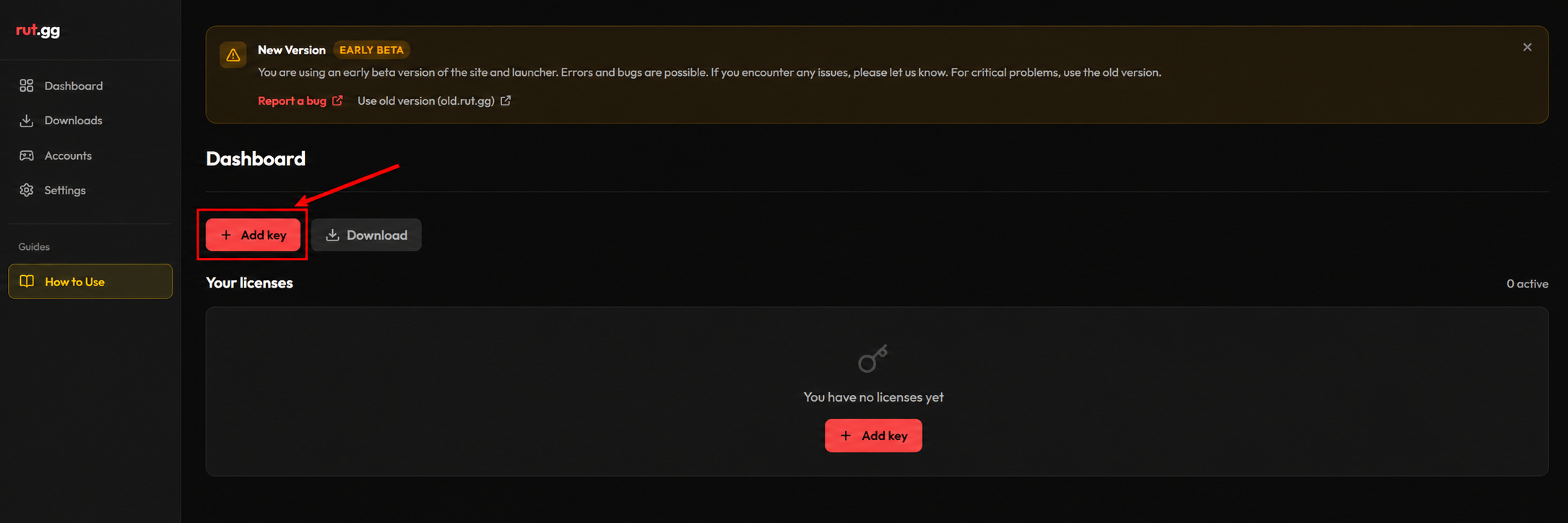
On the **Dashboard**, select **Add key**. Enter your product key, then select **Activate**.
Add key on the Dashboard
After activation, your product appears under **Your licenses**.
{% endstep %}
{% step %}
### Download and install the loader
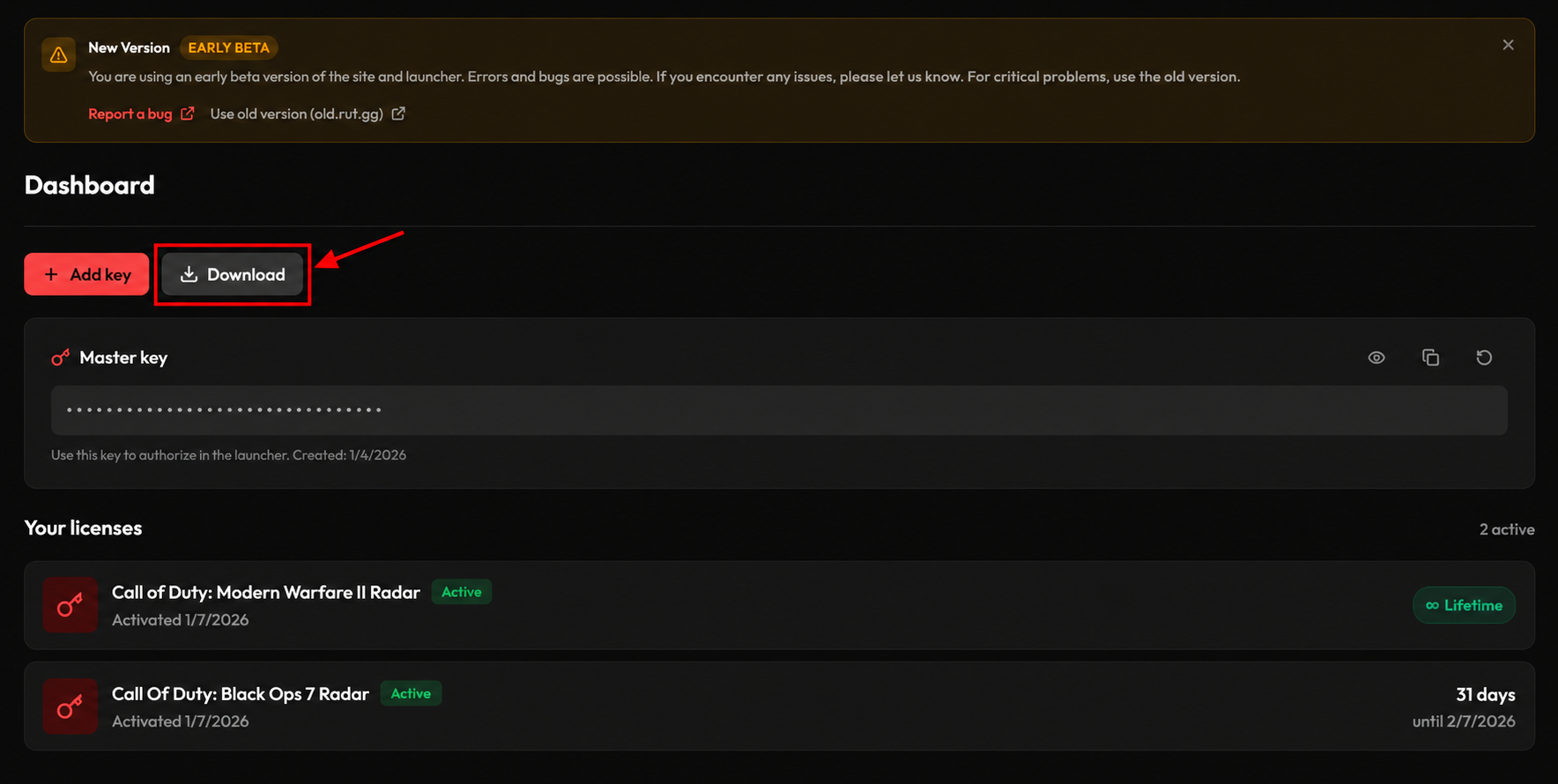
Select **Download** at the top of the page beside Add key. Once the download finishes, install the loader.
Download after key activation — interface example
{% endstep %}
{% step %}
### Choose your game and select Launch
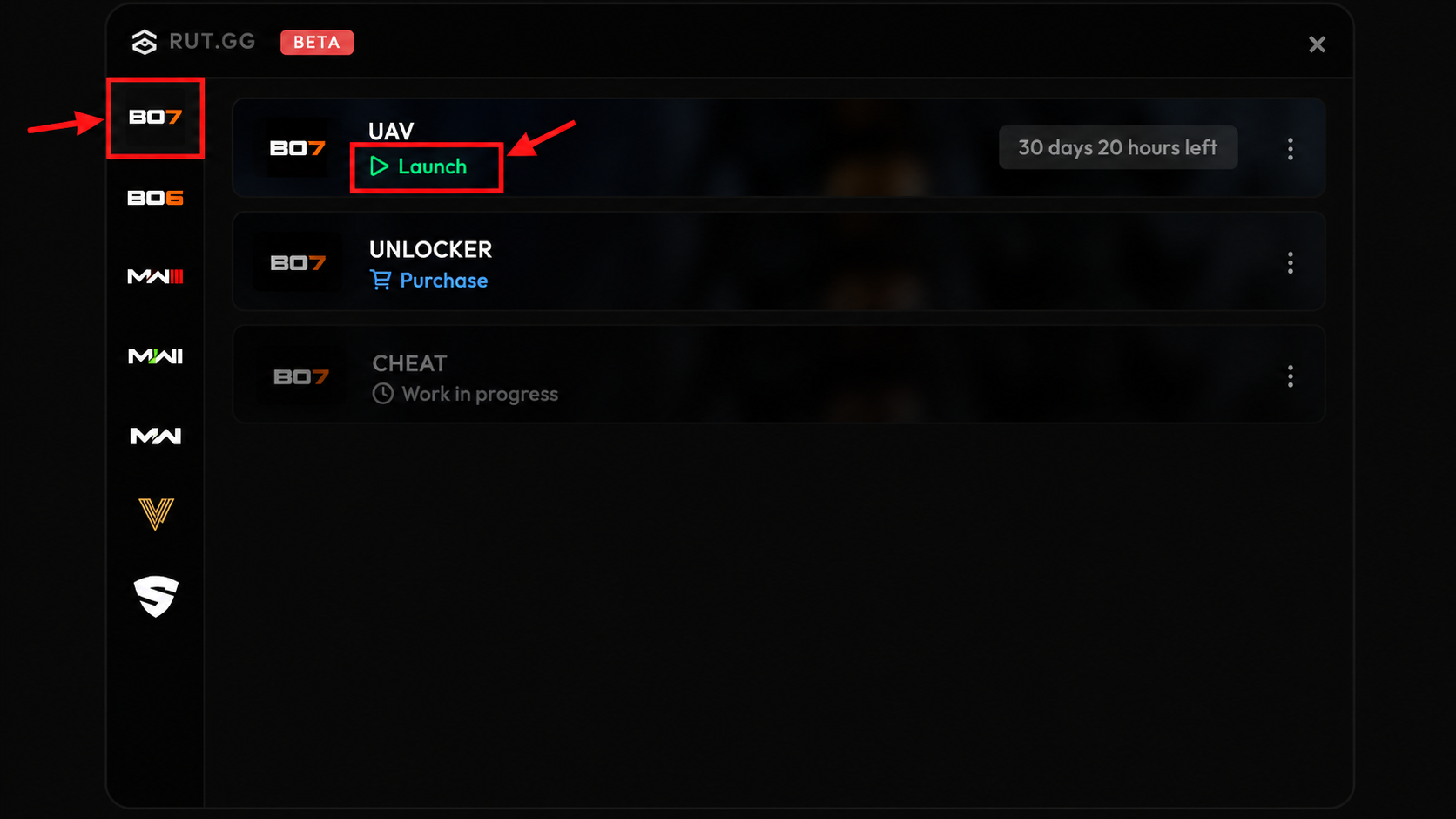
Open the loader and choose **Black Ops 7** from the game list. Select **Launch** beside your activated product.
Game selector and Launch control — interface example
The image shows the control locations. Select your own game and the product activated on your account.
{% endstep %}
{% step %}
### Wait for the loader to close automatically
Wait until startup completes and the loader closes fully, with all its windows disappearing automatically. Then continue to the next step.
{% endstep %}
{% step %}
### Enter the game lobby
Start the game and wait until you have **fully reached the lobby**, then use the shortcuts below.
{% endstep %}
{% endstepper %}
## Activate in the game lobby
{% tabs %}
{% tab title="Unlock All" %}
1. In the lobby, press `F2`.
2. Then press `F3` to activate **Unlock All**.
{% endtab %}
{% tab title="UAV" %}
1. In the lobby, press `F2`, then press `F5` to enable **UAV**.
2. Enter a match; UAV will appear at the top of the screen.
3. To turn it off, press `F5` again. You do not need to press `F2` again.
{% endtab %}
{% endtabs %}
## Need a hand?
**SIGN SUPPORT**
The Sign team is here to help. Open a Discord ticket and include the page name, the step you reached, and a screenshot of the issue so we can help you more clearly.
Get help on DiscordVisit Sign Website
---
# Agent Instructions
This documentation is published with GitBook. GitBook is the documentation platform designed so that both humans and AI agents can read, navigate, and reason over technical content effectively. Learn more at gitbook.com.
## Querying This Documentation
If you need additional information that is not directly available in this page, you can query the documentation by asking a question.
Perform an HTTP GET request on the following URL with the `ask` and `goal` query parameters:
```
GET https://docs.signcod.com/sign/english/games/black-ops-7/unlock-all-uav/installation.md?ask=&goal=
```
`ask` is the immediate question: it should be specific, self-contained, and written in natural language.
`goal` is what the user is ultimately trying to achieve, the reason they need the answer. Sharing it helps GitBook give you a better, more relevant answer. A goal is most helpful when it describes the outcome the user wants rather than restating the question. For example, with `ask=how do I create an API token`, a goal like `automate deployments from our CI pipeline` lets GitBook tailor the answer to that use case.
The response will contain a direct answer to the question and relevant excerpts and sources from the documentation.
Use this mechanism when the answer is not explicitly present in the current page, you need clarification or additional context, or you want to retrieve related documentation sections.