> For the complete documentation index, see [llms.txt](https://docs.signcod.com/llms.txt). Markdown versions of documentation pages are available by appending `.md` to page URLs; this page is available as [Markdown](https://docs.signcod.com/sign/english/games/war-dogs/ka/installation.md).

# Download

Prepare Medal, activate KA, and open the in-game menu.

<mark style="color:$primary;">**SIGN · KA**</mark>

Use this order in every game that supports KA: **PC Requirements → Medal → KA loader**.

## 1 · Complete PC Requirements <a href="#requirements" id="requirements"></a>

Complete the system requirements first, then return to this page.

<a href="/sign/english/basics/prepare-your-pc/pc-requirements.md" class="button primary" data-icon="desktop">Open PC Requirements</a>

## 2 · Configure Medal <a href="#medal" id="medal"></a>

{% stepper %}
{% step %}

### Install Medal and sign in

Download **Medal.tv** and complete the installation. Open it and sign in or create an account.

<a href="https://medal.tv/" class="button secondary" data-icon="download">Download Medal.tv</a>
{% endstep %}

{% step %}

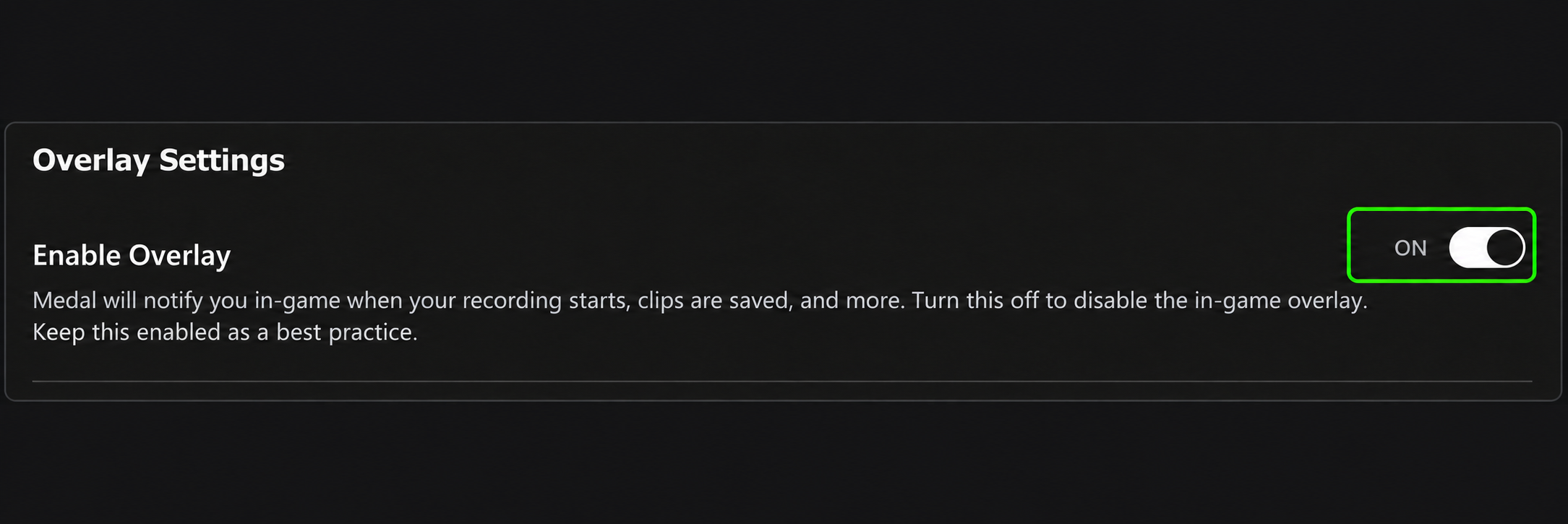
### Enable Overlay

In the sidebar, open **App Settings → Overlay** and set **Enable Overlay = ON**. Keep this setting enabled.

<div align="left" data-full-width="false"><figure><img src="https://3789730940-files.gitbook.io/~/files/v0/b/gitbook-x-prod.appspot.com/o/spaces%2FxZuDAScHwskuWmm8MVea%2Fuploads%2FhOIFrizaCeUzzGTnpqv1%2Foverlay-tab.webp?alt=media" alt="Overlay under App Settings" width="320"><figcaption><p>Overlay under App Settings</p></figcaption></figure></div>

<div align="left" data-full-width="false"><figure><img src="https://3789730940-files.gitbook.io/~/files/v0/b/gitbook-x-prod.appspot.com/o/spaces%2FxZuDAScHwskuWmm8MVea%2Fuploads%2FoGHKiwxrLlA5grwMKE10%2Foverlay-on.webp?alt=media" alt="Enable Overlay = ON"><figcaption><p>Enable Overlay = ON</p></figcaption></figure></div>
{% endstep %}

{% step %}

### Disable clip capture

Open **Clip Settings** and set **Capture Clips = OFF**.

<div align="left" data-full-width="false"><figure><img src="https://3789730940-files.gitbook.io/~/files/v0/b/gitbook-x-prod.appspot.com/o/spaces%2FxZuDAScHwskuWmm8MVea%2Fuploads%2FbdSgzbKqqa5o2qlbd7jf%2Fcapture-clips-off.webp?alt=media" alt="Clip Settings · Capture Clips = OFF"><figcaption><p>Clip Settings · Capture Clips = OFF</p></figcaption></figure></div>
{% endstep %}

{% step %}

### Disable Video Overlay and virtual camera capture

Open **Video Overlay** and turn both settings off:

* **Video Overlay = OFF**
* **Virtual Camera Captures = OFF**

<div align="left" data-full-width="false"><figure><img src="https://3789730940-files.gitbook.io/~/files/v0/b/gitbook-x-prod.appspot.com/o/spaces%2FxZuDAScHwskuWmm8MVea%2Fuploads%2FgJE6WxZkIlsoKGaH0iHI%2Fvideo-overlay-off.webp?alt=media" alt="Video Overlay and Virtual Camera Captures = OFF"><figcaption><p>Video Overlay and Virtual Camera Captures = OFF</p></figcaption></figure></div>
{% endstep %}

{% step %}

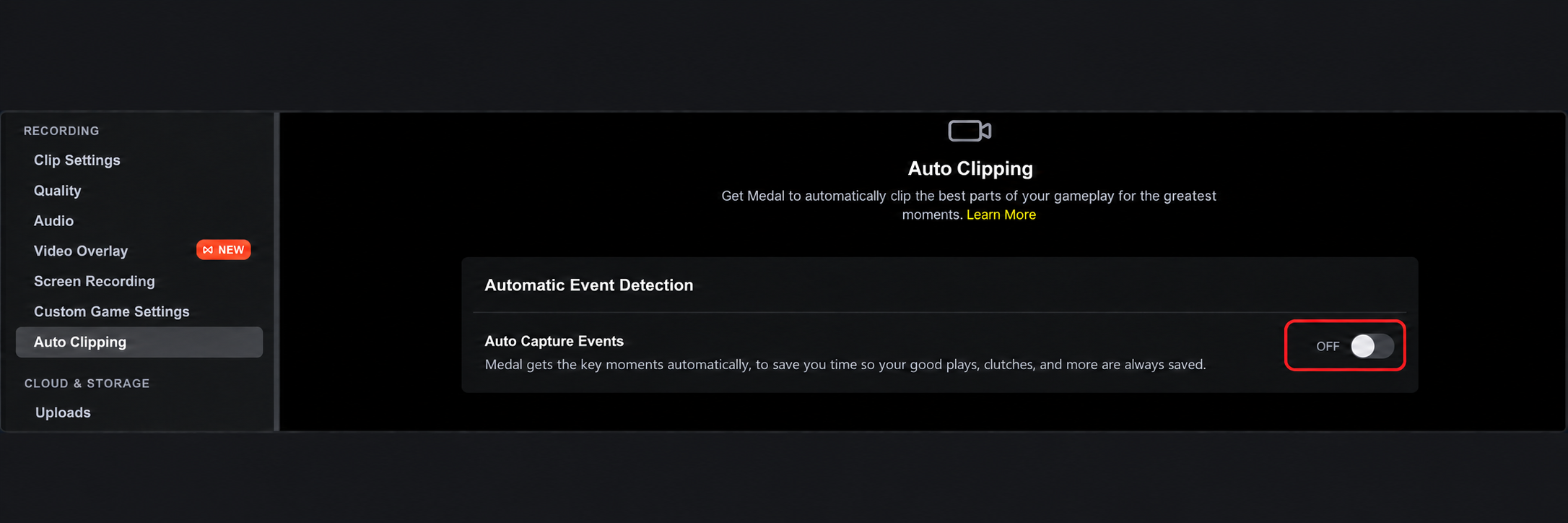
### Disable automatic clipping

Open **Auto Clipping** and set **Auto Capture Events = OFF**.

<div align="left" data-full-width="false"><figure><img src="https://3789730940-files.gitbook.io/~/files/v0/b/gitbook-x-prod.appspot.com/o/spaces%2FxZuDAScHwskuWmm8MVea%2Fuploads%2Fiosjd2u1Gr7TxS7XUYLx%2Fauto-clipping-off.webp?alt=media" alt="Auto Clipping · Auto Capture Events = OFF"><figcaption><p>Auto Clipping · Auto Capture Events = OFF</p></figcaption></figure></div>
{% endstep %}

{% step %}

### Finish preparation and restart

* Disable any other overlay you use: **Discord**, **NVIDIA App / GeForce Experience**, **AMD Adrenalin**, or **Steam**.
* Press `Ctrl + Shift + Esc` and open **Startup apps**. Right-click every listed app and select **Disable**.
* **Restart the PC before continuing. This step is required.**
  {% endstep %}
  {% endstepper %}

## Check the settings <a href="#checklist" id="checklist"></a>

<table data-full-width="false"><thead><tr><th>Page</th><th>Setting</th><th>State</th></tr></thead><tbody><tr><td>Overlay</td><td>Enable Overlay</td><td><strong>ON</strong></td></tr><tr><td>Clip Settings</td><td>Capture Clips</td><td><strong>OFF</strong></td></tr><tr><td>Video Overlay</td><td>Video Overlay, Virtual Camera Captures</td><td><strong>OFF</strong></td></tr><tr><td>Auto Clipping</td><td>Auto Capture Events</td><td><strong>OFF</strong></td></tr></tbody></table>

## 3 · Start KA <a href="#loader" id="loader"></a>

{% stepper %}
{% step %}

### Open and minimize Medal

After the restart, open **Medal** and sign in. Confirm that its settings match the checklist above, return to its main window, and minimize it to the taskbar.

{% hint style="warning" %} <mark style="color:$danger;">**Keep Medal running and minimized throughout use. Do not close it completely.**</mark>
{% endhint %}
{% endstep %}

{% step %}

### Open the KA loader and activate your key

Download and open the loader, activate your key, and confirm the game displayed.

<a href="https://mega.nz/file/yp82kYZT#ZTFCDmqpA5VH2qS-GkD9KZESZXVCfX7tzaDKNd3KrVc" class="button secondary" data-icon="download">Download KA loader</a>
{% endstep %}

{% step %}

### Select Start and wait for Successful

Confirm that **Medal is still running and minimized**, then select **Start** in the loader. Wait for the **Successful** message and select **OK**.
{% endstep %}

{% step %}

### Enter the game and use the menu

Launch the game; the menu will appear in-game. Use `Insert` to hide or show it, while keeping Medal running in the background.
{% endstep %}
{% endstepper %}

## Need a hand? <a href="#support" id="support"></a>

<mark style="color:$secondary;">**SIGN SUPPORT**</mark>

The Sign team is here to help. Open a Discord ticket and include the page name, the step you reached, and a screenshot of the issue so we can help you more clearly.

<a href="https://discord.gg/siin" class="button primary" data-icon="discord">Get help on Discord</a> <a href="https://www.signcod.com/ar" class="button secondary" data-icon="globe">Visit Sign Website</a>


---

# Agent Instructions
This documentation is published with GitBook. GitBook is the documentation platform designed so that both humans and AI agents can read, navigate, and reason over technical content effectively. Learn more at gitbook.com.

## Querying This Documentation
If you need additional information that is not directly available in this page, you can query the documentation by asking a question.

Perform an HTTP GET request on the following URL with the `ask` and `goal` query parameters:

```
GET https://docs.signcod.com/sign/english/games/war-dogs/ka/installation.md?ask=<question>&goal=<user_goal>
```

`ask` is the immediate question: it should be specific, self-contained, and written in natural language.
`goal` is what the user is ultimately trying to achieve, the reason they need the answer. Sharing it helps GitBook give you a better, more relevant answer. A goal is most helpful when it describes the outcome the user wants rather than restating the question. For example, with `ask=how do I create an API token`, a goal like `automate deployments from our CI pipeline` lets GitBook tailor the answer to that use case.

The response will contain a direct answer to the question and relevant excerpts and sources from the documentation.

Use this mechanism when the answer is not explicitly present in the current page, you need clarification or additional context, or you want to retrieve related documentation sections.